Controls Guide for Cheat During The Test
Learn PC and mobile inputs for movement, phone peeks, answer sheets, distractions, and safe submit flow.
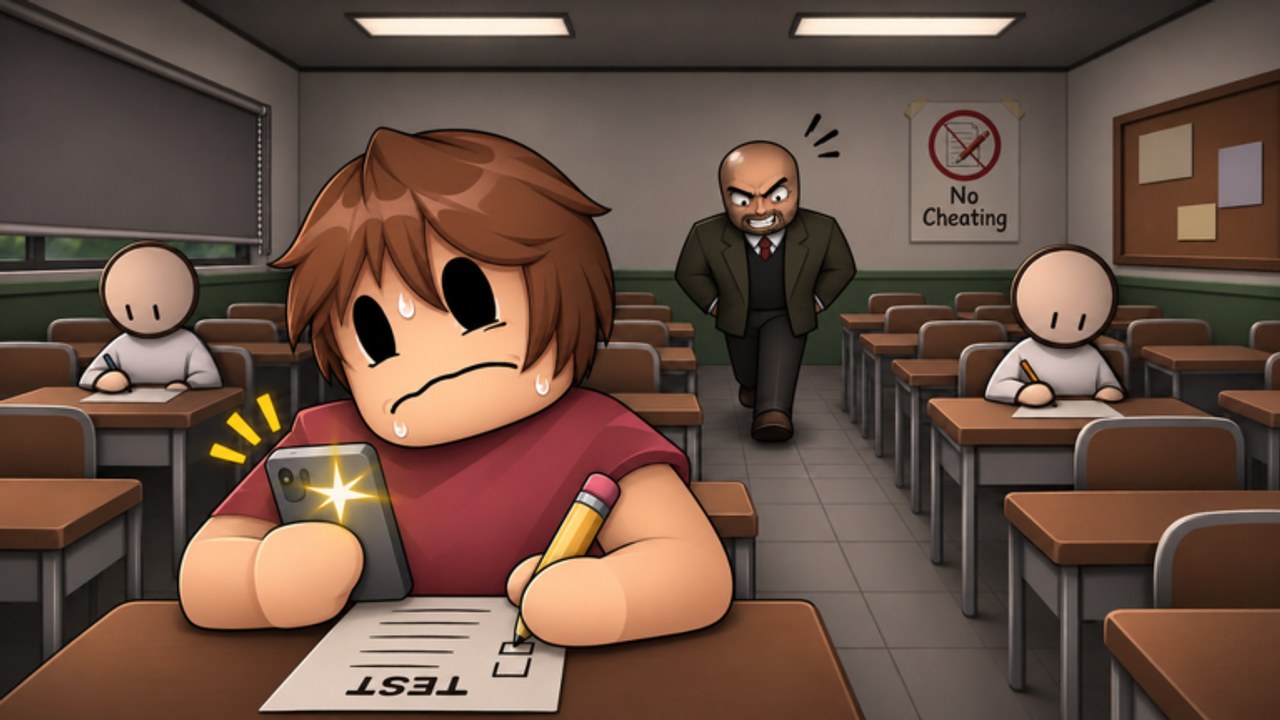
Cheat During The Test rewards calm hands more than raw memory. Dream Up Studios’ classroom loop asks you to walk, sit, open a phone, check answers, deploy distractions, and submit papers while a teacher patrols a room that can hold up to 24 players. This controls guide covers the player-facing inputs you actually need on PC and mobile, plus habits that keep those inputs from becoming free trips to Detention.
Bindings can shift while the experience is still updating after the 27 October 2026 launch. Treat on-screen prompts and the in-game settings panel as the final authority. If a tip below disagrees with your current client, follow the HUD—not this page—and skim the Updates Hub after patches.
If you are brand new to subjects and Gold Stars, pair this article with Getting Started. Timing windows and gaze reads live in Avoid Getting Caught.
Movement and camera (PC and mobile)
On PC you typically move with standard Roblox WASD (or arrow keys), jump with Space, and steer the camera with the mouse. On mobile you use the virtual joystick and camera drag. In this game, flashy parkour is rarely useful—you are inside a classroom fantasy, not an obstacle course. Prioritize:
- Reach your seat without bumping chaos. Colliding into desks or other avatars can yank the camera and make you miss a teacher turn.
- Sit with a clear sightline. You need to see the teacher model without spinning the camera 180° every peek.
- Stop moving before you open the phone. Walking while the answer UI is up is how players advertise themselves.
Mobile players should enlarge the usable thumb zone in Roblox settings if peeks feel imprecise. PC players should disable mouse acceleration habits that overshoot when snapping back to the paper after a phone close.
Opening and closing the phone
The phone is the designed cheat tool. The exact key, button, or proximity prompt can change across BETA builds, so read the prompt on your screen the first lobby of every session. Muscle memory from yesterday’s bind is a common catch cause.
Safe phone habits:
- Open only when the teacher’s attention is elsewhere (see Avoid Getting Caught).
- Keep the first peek under a second until you trust the window.
- Close on the earliest shoulder turn—not after the teacher is fully facing you.
- Never leave the phone UI open while you chat, emote, or fiddle with inventory.
Faster phones from Phone Upgrades shrink the vulnerable window. Controls skill plus upgrade speed beats either alone.
Watch the embedded classroom clip mid-article for real peek pacing: notice how long the phone stays visible relative to teacher movement, then copy that patience on your device.
Answer sheet habits
Your paper UI is where scores are won. Good control flow looks like this:
- Read the prompt on the sheet first.
- Decide whether you already know enough to answer without a peek.
- If you need the phone, open during a safe window, confirm one fact or number, close immediately.
- Commit the answer on the sheet.
- Only reopen if a later question truly needs another confirm.
Bad flow is phone-open-first on every line. That turns every exam into a detection lottery. Subject-specific timing—Geography versus Maths versus English—is covered in Subjects & Exams. This page only cares about the input discipline: sheet → decide → peek if needed → close → mark.
On mobile, fat-finger mistakes are real. Anchor your device, use two thumbs with roles (one for camera/teacher watch, one for UI), and avoid answering while walking between desks.
Inventory and distraction items
Classroom toys such as paper planes and similar attention sinks live in your inventory or hotbar depending on the current build. The control goal is simple: deploy the toy, wait for the teacher to commit, then peek—never the reverse.
Control tips for distractions:
- Bind or pin the distraction where you can fire it without opening deep menus mid-exam.
- Do not spam. Spam destroys patrol readability for the whole lobby.
- Close any phone UI before you throw; open after the teacher bites.
Deep strategy for when to pull attention, teamwork, and griefing etiquette sits in Distractions. Rank spend priority against phones on the Tier List Hub.
Submit flow and end-of-paper discipline
When the timer tightens, players panic-mash. That is when controls fail hardest. Build a submit routine:
- Scan unanswered lines once with the phone closed.
- Use one planned distraction window for the remaining hard questions if needed.
- Submit cleanly through the on-screen confirm—do not mash every key hoping something sticks.
- After submit, hands off the phone until the next paper starts. Post-submit peeks still look suspicious if the teacher is scanning.
Perfect-run routing after you trust your inputs lives in Perfect Score.
Device and accessibility tips
- PC: Stable framerate helps gaze reads. Lower graphics if teacher turns feel delayed.
- Mobile: Play seated with the device braced; portrait vs landscape is preference, but pick one and stick to it for muscle memory.
- Tablet: Treat it like mobile with more screen real estate—great for watching the teacher while tapping answers.
- Headphones: Teacher audio cues and classroom noise can telegraph chaos windows; mute music overlays if they drown those tells.
- BETA reminder: After any Dream Up Studios patch, open settings and re-confirm phone / interact binds before a ranked climb lobby.
First-lobby controls checklist
- Confirm phone open/close bind from the live prompt
- Practice one sit → peek → close cycle on an easy question
- Locate distraction item without burying the paper UI
- Complete one paper without moving while the phone is open
- Note which subject forces longer peeks (often Maths)
What to practice next
| Control goal | Open next |
|---|---|
| Safer peek timing | Avoid Getting Caught |
| Subject pacing | Subjects & Exams |
| Toy timing | Distractions |
| Shorter vulnerable windows | Phone Upgrades |
| Recovery after a mis-tap | Detention |
Common control mistakes
- Assuming last week’s keybind still works after a patch
- Opening the phone while strafing or camera-spinning
- Keeping inventory open during a teacher approach
- Panic-submitting with the phone still visible
- Copying binds or macros from unrelated games (including Cheating During Testing by a different creator)
Clean inputs will not invent answer keys for you, and they will not replace stealth sense. They do remove unforced errors so Gold Stars from solid exams can fund better phones instead of paying for the same Detention loop.
Master the prompts, keep peeks short, and treat every BETA update as a reason to re-check settings. That boring discipline is what separates comedy highlight fails from consistent classroom runs.
Frequently Asked Questions
Quick answers about exams, phones, Detention, and Gold Stars.
Do PC and mobile use the same cheat timing rules?
Yes. Detection cares about phone visibility versus teacher attention. Only the buttons and touch targets differ by device.
What if my phone keybind stopped working?
Re-read on-screen prompts and check settings after patches. BETA binds can change; the HUD beats old muscle memory.
Should I move while the phone is open?
No. Stop, peek, close, then move. Walking with the UI up makes catches more likely and ruins camera tracking.
Where do I learn subject-specific pacing?
Use the Subjects & Exams guide for Geography, Maths, and English timing after you trust your basic phone open/close flow.